
Undergraduates Taking Graduate Courses for Undergraduate Credit: Reviewer User Guide
Purpose: West Chester University’s Undergraduates Taking Graduate Courses for Undergraduate Credit form allows students to apply using an online form. The form is then routed to the reviewers via OnBase in the REG5 Student Academic Form Review workflow.
Before continuing, please note the following:
The OnBase Web Client is supported on the following browsers:
- Google Chrome 129 or later
- Microsoft Edge on Chromium 129 or later
- Mozilla Firefox 131 or later
- Mozilla Firefox Extended Support Release (ESR) 128 or later
- Safari 17 or later, with the exceptions of full screen mode and Safari Reader
Please disallow popup blockers on your computer when using the OnBase system for this process. If you do not know how to disable popup blockers on your browser, please submit a ticket for support. You must have your employee ID and your WCU username/password to proceed.
| Contents |
|---|
| Access Review Queue |
| Review Process Overview |
| Advisor Review Process |
| Faculty Member Review Process |
| Chair Review Process |
| Graduate Dean Review Process |
Access Review Queue
- A notification will arrive to your WCU email containing the student's name and course information. Click the link in the email or browse to onbase.wcupa.edu using an approved browser from the list above.
- Select Login (Fig 1) and login using your WCU Credentials.

Fig 1 - Your home page will appear similar to (Fig 2).
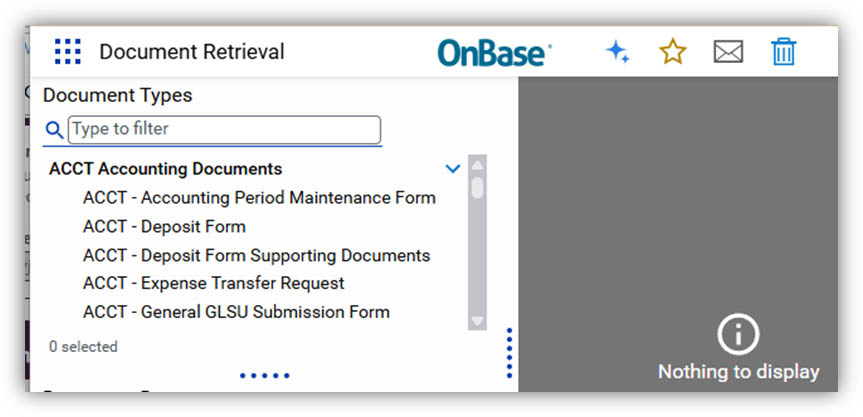
Fig 2 - Click on the menu icon on the top left of the screen. It may read Document Retrieval
or Custom Queries depending on additional security (Fig 3).

Fig 3 - Select Open Workflow from the options (Fig 4). A new window will open.
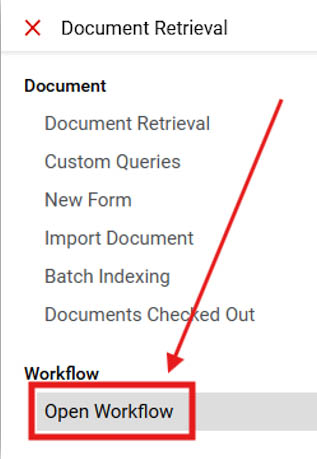
Fig 4
Review Process Overview
- Expand REG5 Student Academic Form Review (Fig 5).
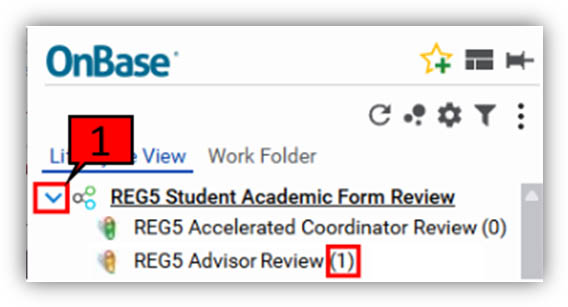
Fig 5 - Select the student request from your review queue (Fig 6).
- Review the request and any previous reviewer's decisions.
- Scroll to your Review Section. Refer to the individual reviewer sections below to locate your specific review queue and decision section.
- Select your Decision.
- Select Save.
- Note: The request may remain visible in your queue until you select Refresh.
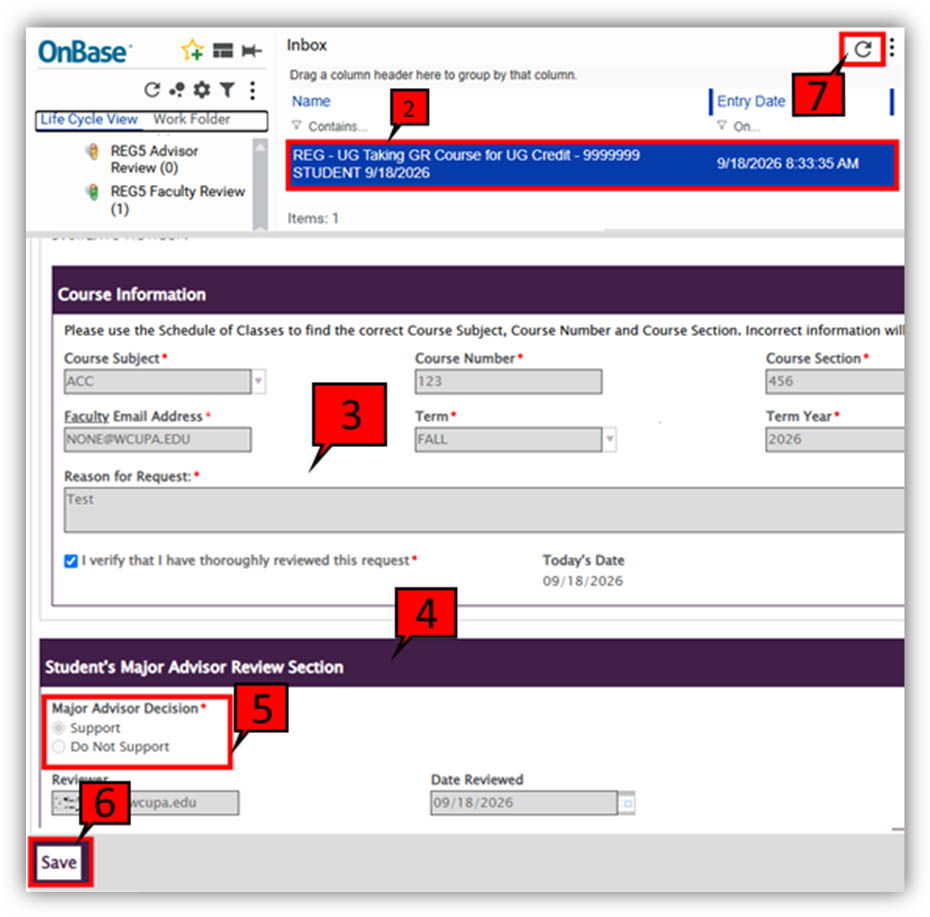
Fig 6
Advisor Review Process
- Queue: REG5 Advisor Review (Fig 7).
- Decision: Student’s Major Advisor Review Section (Fig 8).
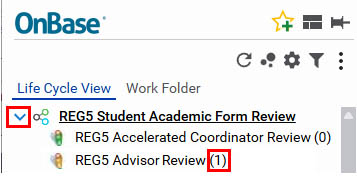
Fig 7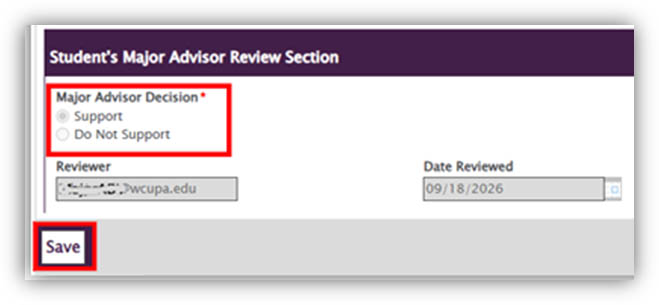
Fig 8
Faculty Member Review Process
- Queue: REG5 Faculty Review (Fig 9).
- Decision: Course Professor Review Section (Fig 10).
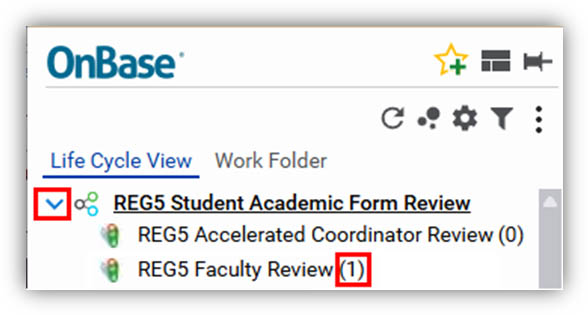
Fig 9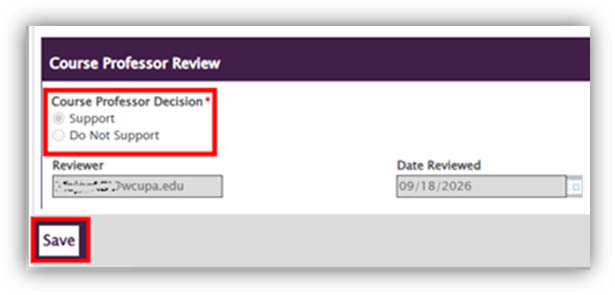
Fig 10
Chair Review Process
- Queue: REG5 Chair Review (Fig 11).
- Decision: Department Chair of Course Review Section (Fig 12).
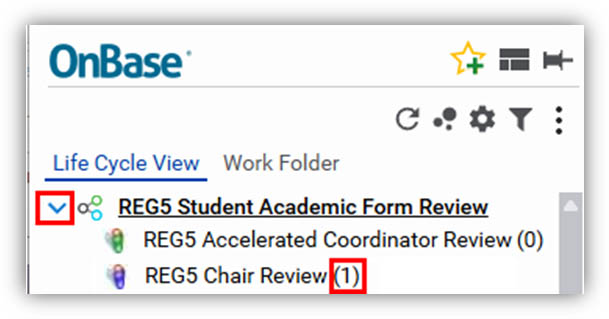
Fig 11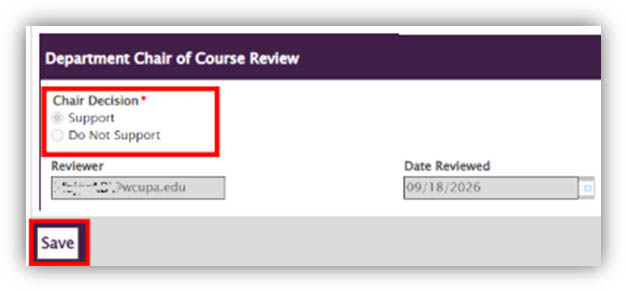
Fig 12
Graduate Dean Review Process
- Queue: REG5 Graduate Dean Review (Fig 13).
- Decision: Dean of The Graduate School Review Section (Fig 14).
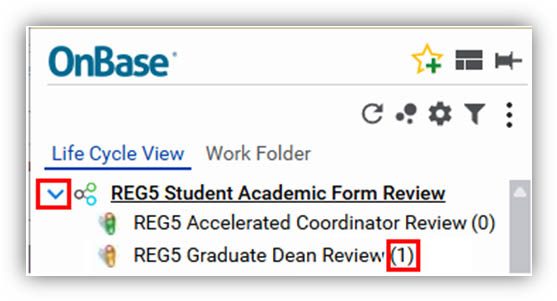
Fig 13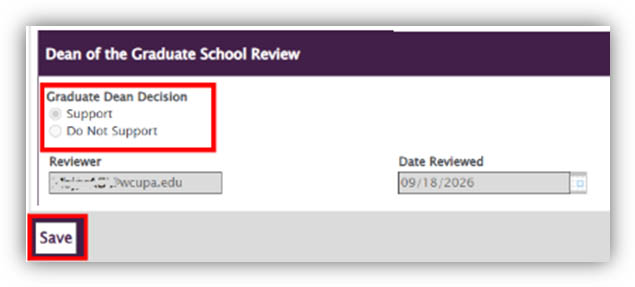
Fig 14
For additional assistance, submit a ticket for support.