
Faculty Management: Assigning Faculty Status, Role, and Department
Last edit date: 8/17/2026
Audience: Deans and College Business Managers
Purpose: Use this guide to assign faculty status, role, college, and department in RamPortal using the Faculty/Advisor Info (SIAINST) page.
Navigation
- If working off campus, connect to the WCU VPN first.
- Login to RamPortal using your WCU Single Sign On (SSO).
- Locate the Faculty Management card on your home page.
- Select Faculty/Advisor Info (Fig 1).
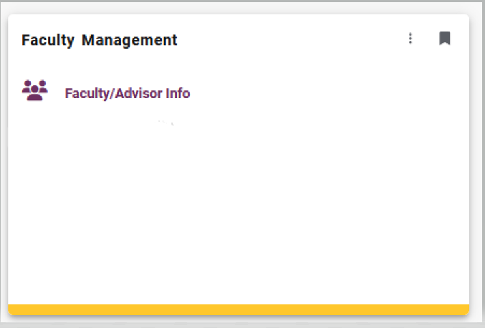
Fig. 1 - Enter the faculty member’s ID, the Term the faculty assignment is effective, and select Go (Fig 2).
Tip: If you don’t know the ID, see the Search for Faculty Member section at the end of this guide.

Fig. 2
Initial Faculty Setup
New faculty records are imported through the SAP HR integration. The initial term is based on the faculty member’s SAP Position Start Date. See Banner Terms and SAP Position Start Dates below for more information.
The SAP HR integration automatically sets the Active status and assigns the Faculty and Advisor roles for new faculty members. The only information that needs to be added manually for a new faculty member is the Home Department (see section below).
Banner Terms and SAP Position Start Dates
In SIAINST, the Term may appear to be the term before the faculty member’s first teaching term because SAP contract dates and Banner Term dates do not always align.
Example: Banner’s Fall 2026 term begins 8/24/2026 but Fall 2026 New Faculty have a SAP Position Start Date of 8/22/2026. Because the contract date starts before the Fall 2026 Banner term begins, the SAP HR integration sets the contract term in Banner to 202620 (Summer 2026).
Assign Faculty College and Department
Use this section to assign or update a faculty member’s College and Department.
- From the SIAINST page, confirm the effective Term that you entered in the key block is correct (Fig 3).
- Use the Navigation down arrow at the bottom left of the page to move to the Faculty College and Department block (Fig 3).
- Select the blue Maintenance button in this block and choose Copy Faculty Coll/Dept.
- This copies the existing college and dept forward to the selected Term.
- If the Maintenance button is greyed out, continue to step 4.
- Update the Faculty College and Department rows as needed:
- Click into the College field, select the ellipsis (…), choose the College, and select OK.
- Click into the Department field, select the ellipsis (…), choose the Department, and select OK.
- Use the Add (+) icon to add a new college or department row.
- Use the Remove (-) icon to remove outdated college or department information.
- Select the Home department if multiple departments are listed.
- The Percentage field can be left blank. It is not currently being used.
- Select Save.
- A confirmation message will display when the update is successful.
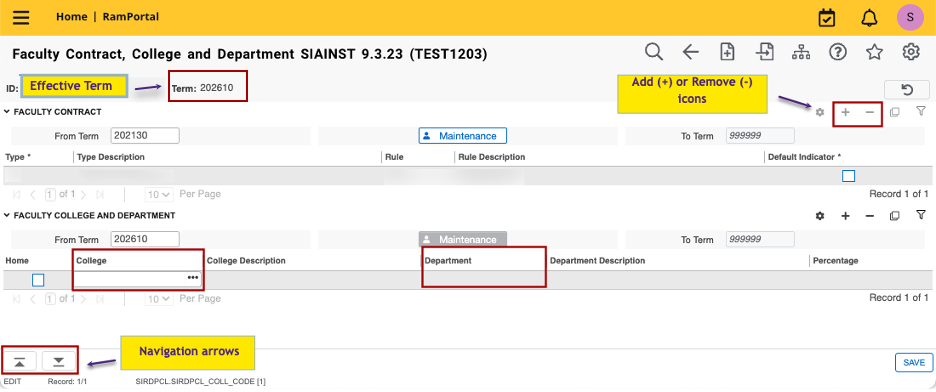
Fig. 3
Reactivate Temporary Faculty
Use this section to reactivate a withdrawn temporary faculty member in RamPortal.
Before you start:
- A Pre-hire Form must be submitted to ensure any updated information required by Payroll and/or Compliance is gathered.
- Confirm whether any new clearances are required before reactivating the faculty in RamPortal.
In RamPortal:
- From the SIAINST page, enter the faculty member’s ID, the Term the faculty assignment is effective, and select Go (Fig 2).
- When entering a future Term that the faculty member is not active for, the record will display the previous WD (Withdrawn) term (Fig. 4).
- Purple box: This is the term you entered from the search screen.
- Gold box: This is the last term there was an update on the faculty member.
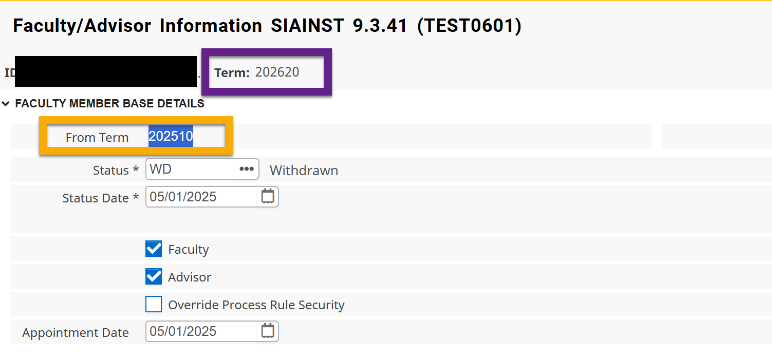
Fig. 4 - If the Maintenance button is blue, select it to copy the record forward to the selected Term. The From Term will update to match the Term you entered in your search (Fig. 5). If the button is greyed out, skip to step 4.See About the Maintenance Button and Terms below for more details.
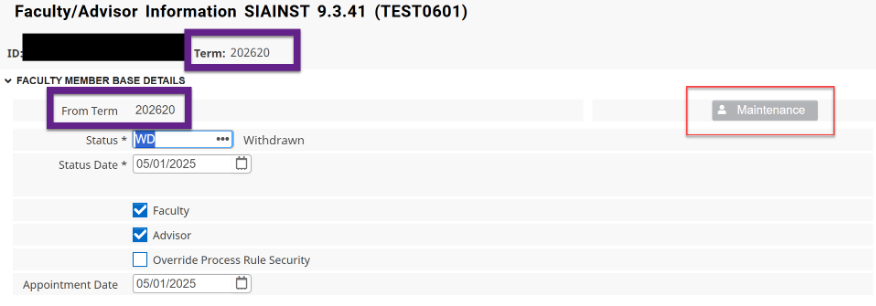
Fig. 5 - Update the Status to AC (Active). The Status Date will automatically update to today’s date.
- Review the Category and Staff Type fields. Do not make changes to either unless the fields are blank. These fields should
automatically be updated by the SAP HR integration. If either are blank, fill in using
the following:
- INSTR - Instructor
- ASTPRF – Assistant Professor
- ASCRPF – Associate Professor
- PROFSR – Professor
- T – Temporary
- P – Permanent
- Select Save to complete.
About the Maintenance Button and Terms
In SIAINST, the fields at the top of the page make up the page’s key block (Fig 6). The Term entered in the key block is the effective term.
- If you see a message “*ERROR* From term must equal key block term; press DUPREC to update” (Fig. 6). This means that the record you are viewing is from a different Term than the Term you entered in the search.
- A blue Maintenance button means there is a term mismatch (see Fig 6); the From Term does not match the key-block Term.
- For existing faculty, the From Term will display a previous term.
- For new faculty with no prior record, the From Term may display as 000000.
- Selecting Maintenance will copy the record forward. This auto-populates the effective From Term to match the selected Term. The To Term can remain as 999999.
- A grey Maintenance button means the record already matches the selected Term and can be edited directly.
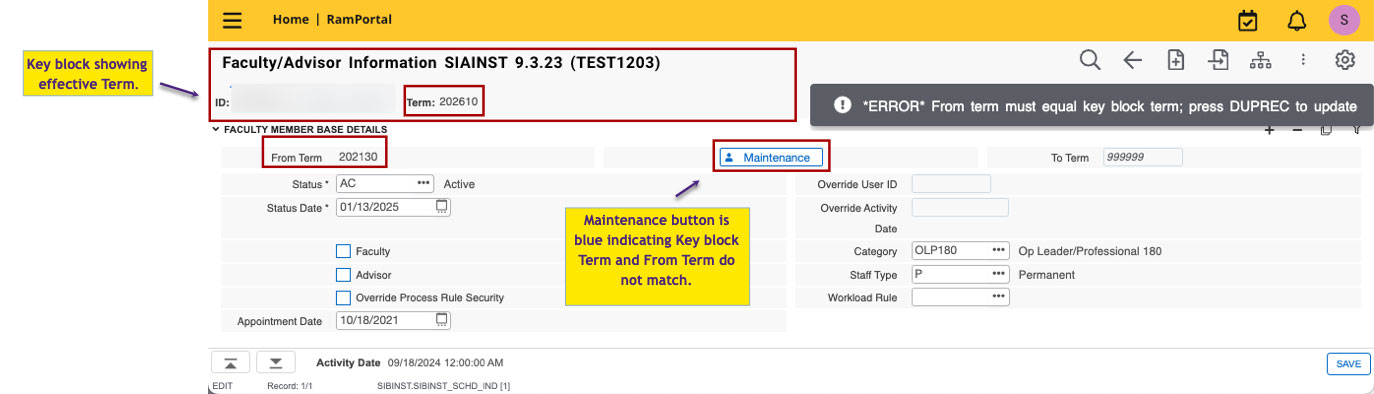
Fig. 6
View Faculty Contract History
Use this to view a faculty member’s contract history in SIIINST and identify the term needed to review college and department assignments in SIAINST.
- From the RamPortal Search card, search for SIIINST and select Faculty Information Query.
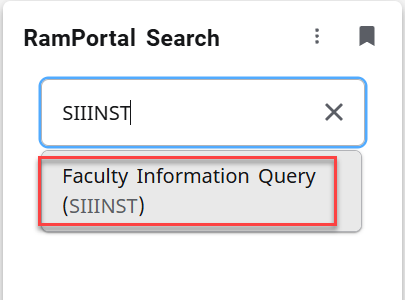
Fig. 7 - Enter the faculty member’s ID.
- You can leave the Term field blank and select Go.
- Review the contract history in the Faculty Information Query block (Fig 8).
- Focus on rows that include a Category value.
- Rows without a category value can be disregarded.
- Note the Start Term (Fig. 8).
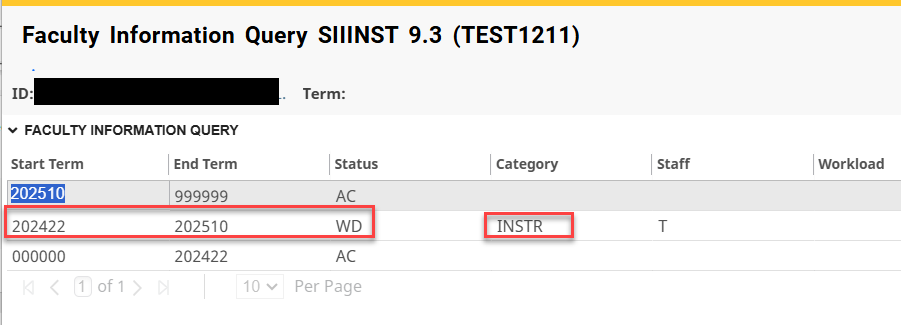
Fig. 8 - To review the college and department assignment, return to Faculty/Advisor Info (SIAINST). Enter the Faculty ID, the Start Term from SIIINST and select Go.
- Use the navigation down arrow to move to the Faculty College Department block to review the assignments for that term.
Search for Faculty Member
Use this when you don’t know the faculty member’s ID.
- In the ID field, select the Search (…) icon.
- Choose Person Search.
- Use Person Search when initially adding a faculty member, since the individual has not yet been assigned the faculty role.
- Faculty/Advisor Search can be used after the person is set up as faculty.
- On the Person Search (SOAIDEN) page, enter the last and first name and select Go.
- Locate the faculty member in the results and click select. You will be returned automatically to the SIAINST page with the ID populated.
For additional assistance, submit a ticket for support.