
Faculty/Staff Resources
Affiliation Agreement – CHS Standard Agreement Template:
All academic credit clinical/internship experiences require an affiliation agreement between WCU and the placement site. Faculty program coordinators who arrange student placements can access the CHS standard agreement template below. The agreement can be downloaded into Word and shared with a community site where a potential student placement is being arranged.
CHS Master Standard Affiliation Agreement
* Regardless of the type of affiliation agreement on file with the University (standard or non-standard), please ensure that all students complete WCU's student attestation form . By completing this form students attest they understand the responsibilities of the field experience and agree to comply with all ongoing requirements listed within the agreement for placement by WCU and the site.
List of current CHS Affiliation Agreements:
CHS affiliation agreements for all department programs are centrally managed in SharePoint. Faculty & staff have access to view all current agreements through the link below:
College of Health Sciences - List of Affiliation Agreement
Need to check if a current agreement is on file with a potential internship site?
How to Find Agreements for a Specific Program
There are a few ways to sort and group the columns that will make it much easier to
find the agreements you are looking for. The example below uses Public Health.
Find agreements that were executed specifically for your program
Once you are on the page:
- Go to the second column, “Executed For,” which is located next to “Clinical-Internship Site Name.”
- Click the drop-down arrow in the “Executed For” column.
- Select “Group by Executed For.”
- Next, go to the drop-down arrow at the very top left of the page, next to the first column, “Clinical-Internship Site Name.”
- Selecting this will collapse all of the categories, making them easier to view.
- Find and select “Public Health.”
You will now see the agreements that were specifically executed for the Public Health program.
Important: There may be agreements that can be used for Public Health even though another program originally executed the agreement. Those agreements will not appear under the “Public Health” category when grouping by “Executed For.” See the next section for how to find those agreements.
Find agreements that cover your program but were executed by another program
To find agreements that may apply to your program even though they were executed by a different program:
- Go to the “Agreement Covers” column. This column is located directly to the right of “Executed For.”
- Click the drop-down arrow in the “Agreement Covers” column.
- Select “Group by Agreement Covers.”
- Use the grouping options to find and select “Agreement Covers: All Health Sciences (CHS).”
This will show agreements that were executed by another program but are designated as covering all of Health Sciences (CHS), meaning they may also be available for use by your program.
Quick Summary
- Executed For → Group by Executed For → Select your program
→ Finds agreements specifically executed for your program. - Agreement Covers → Group by Agreement Covers → Select “All Health Sciences (CHS)”
→ Finds agreements executed by another program that may also cover your program.
Not familiar with SharePoint? Review the video tutorial below on how to navigate the site.
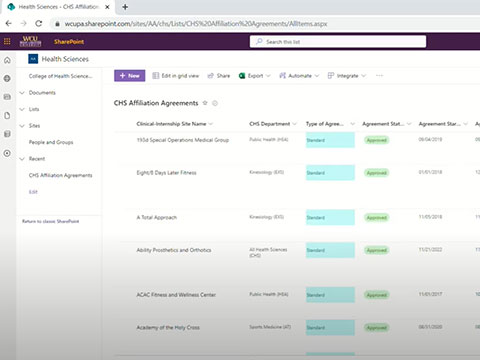

WCU CHS SharePoint Review Video
If you have additional questions or concerns, please contact the Administrative Assistant for CHS Clinical Experiences, Heather Showers at hshowers2@wcupa.edu.